
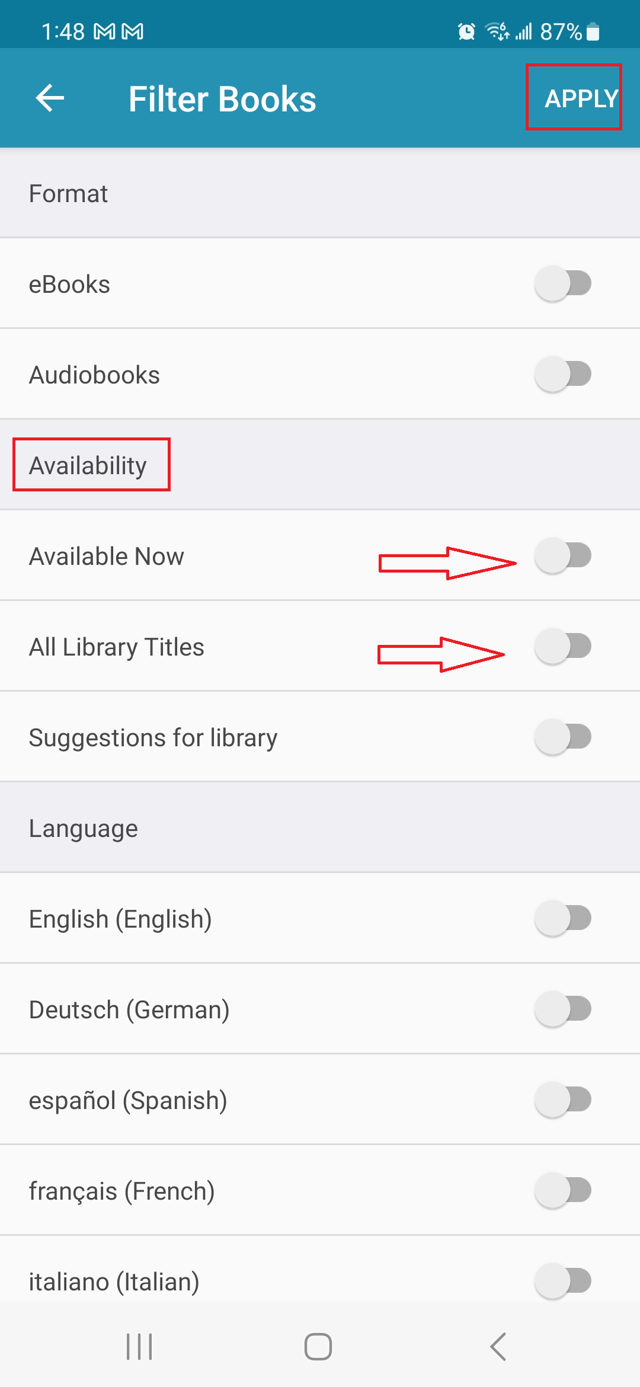
The CloudLibrary mobile app allows users to filter titles by availability. The three availability options are Available Now, All Library Titles, or Suggestions for library (if suggestions are enabled). This article will discuss Available Now and All Library Titles.
Setting the search filter to Available Now will show all titles that are currently available to be borrowed. This will not show titles with holds or titles unavailable due to a Pay-Per-Use budget hitting the maximum limit.
Setting the filter to All Library Titles will show all titles the library has access to regardless of the current borrow or hold status.
Changing Availability Filtering in the CloudLibrary Mobile App
Instructions
- Login to the CloudLibrary app with your library barcode number and PIN (if required)
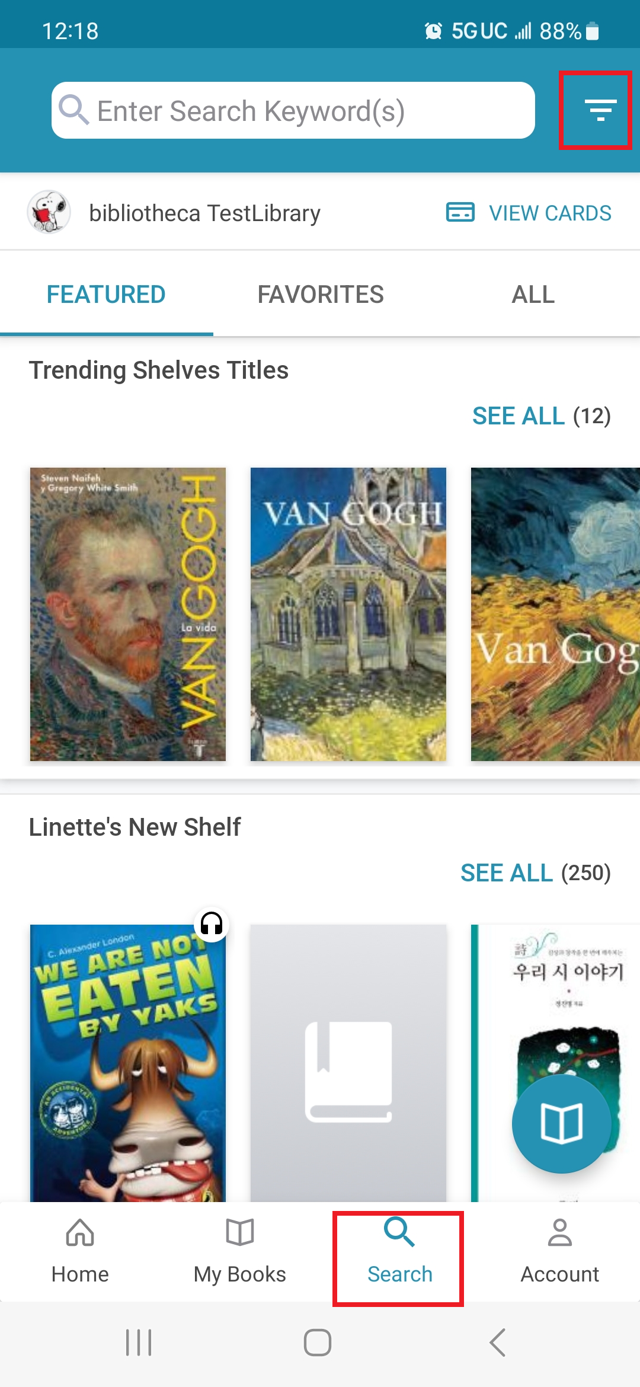
- Scroll down to the bottom of the screen and tap the Search tab
- On the Search screen, tap the filter icon in the upper right corner:
4. On the filter screen, locate Availability and tap/toggle on either Available Now or All Library Titles and click Save/Apply.
From the Search tab, enter in search keywords at the search bar at the top, complete an Advanced Search by tapping the search bar at the top > Advanced Search, or use the Featured, Favorites, or All tabs at the top of the screen to browse for titles.